


Mini Hidden Spy Camera Wireless Wifi IP Home Security 1080P HD DVR Night Vision
Regular price £9.50About this item
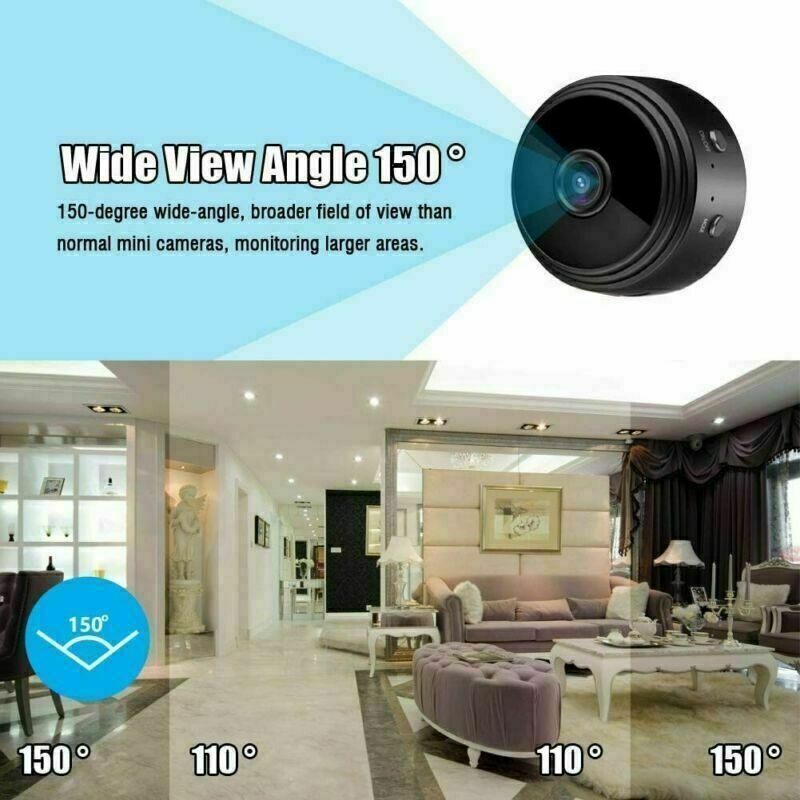
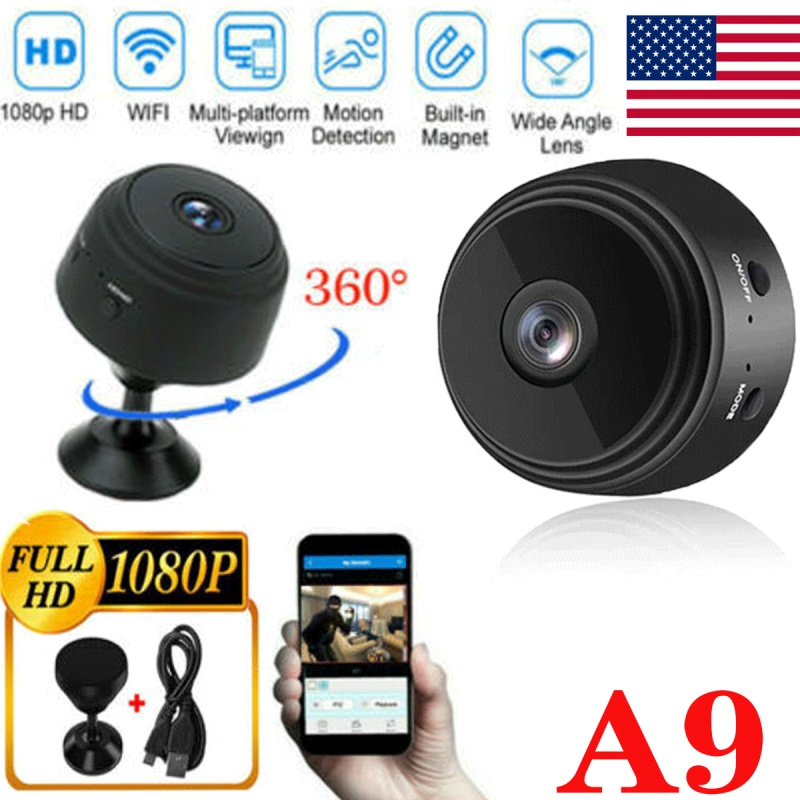
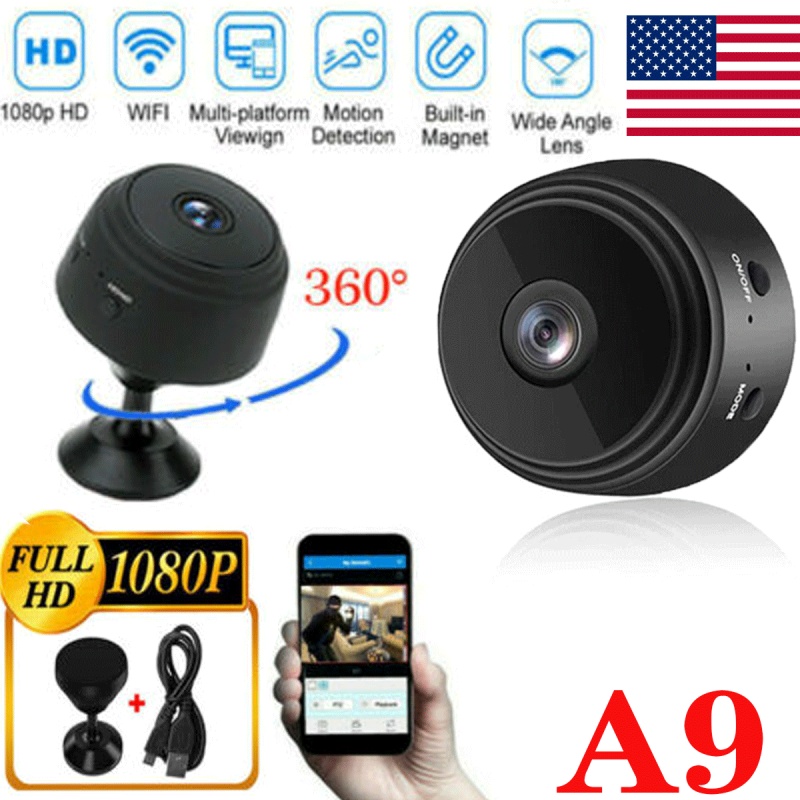
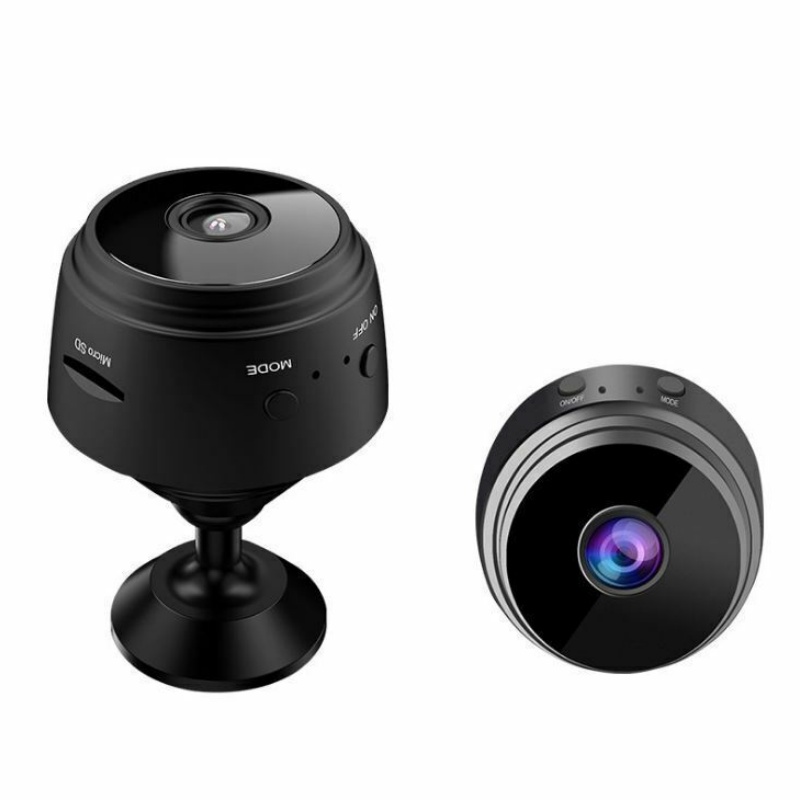
- 【Full HD 1080P Spy Camera】 The small mini cam records video in exceptional 1920X1080P HD at 30 frames per second. Function with video, picture, loop recording, motion detective, infrared night vision, time display, magnetic, etc. Hidden Camera with 120° wide angle view that can monitor anywhere in standard distance.
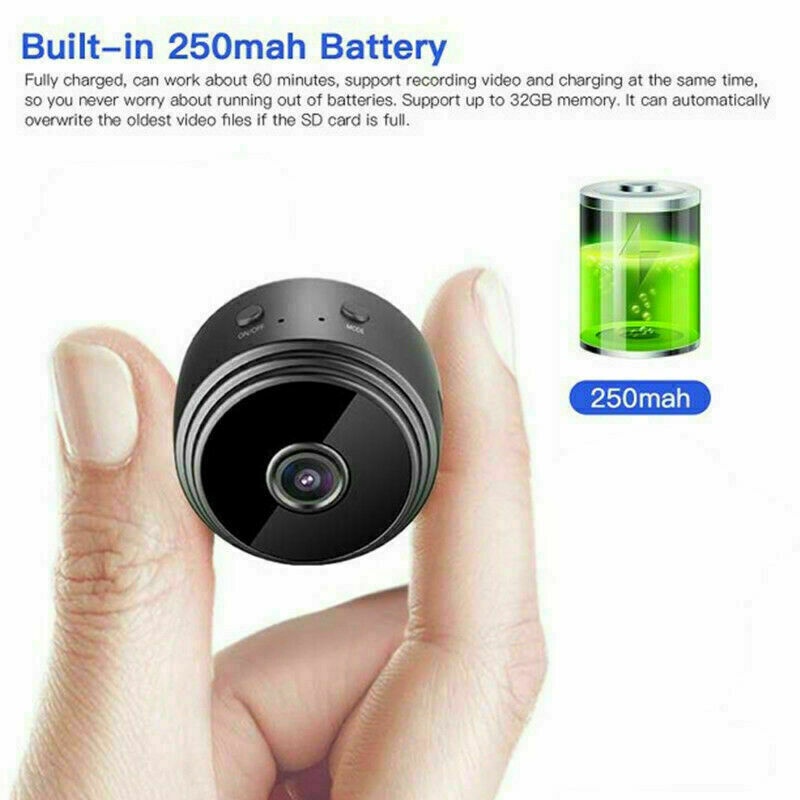
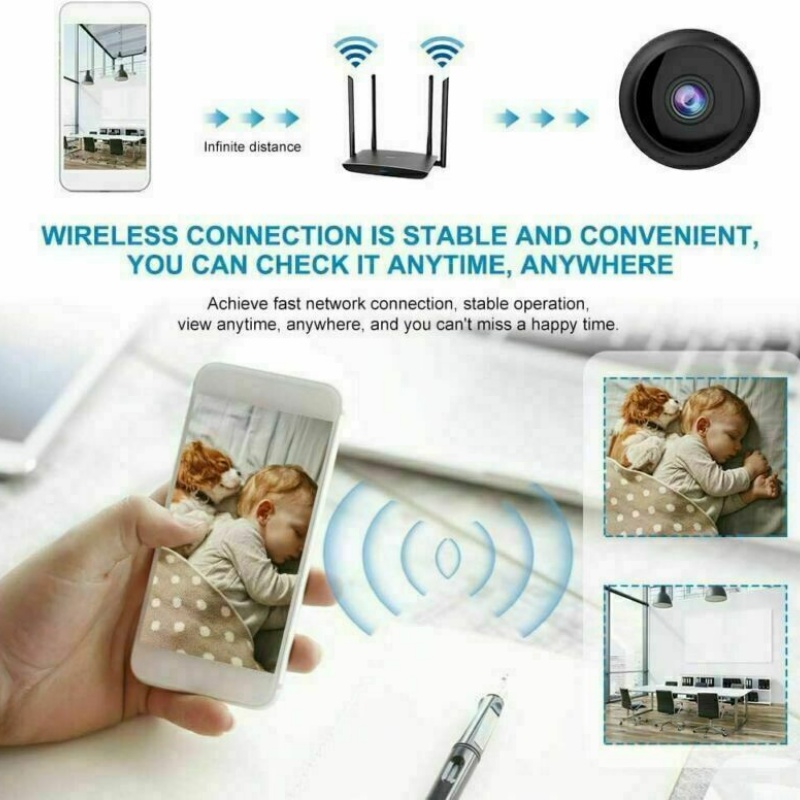
- 【Built-in 250mah Battery】 As A mini WIFI Camera, It built-in 250mah battery, fully charged, can work about 40-60 minutes, Also you can get the camera plugged into a USB charger (or power bank) for recording 24/7 hours. With Wi-fi connectivity to room's 2.4GHz router, you can watch live video feed or playbacks no matter where you are by accessing the APP.
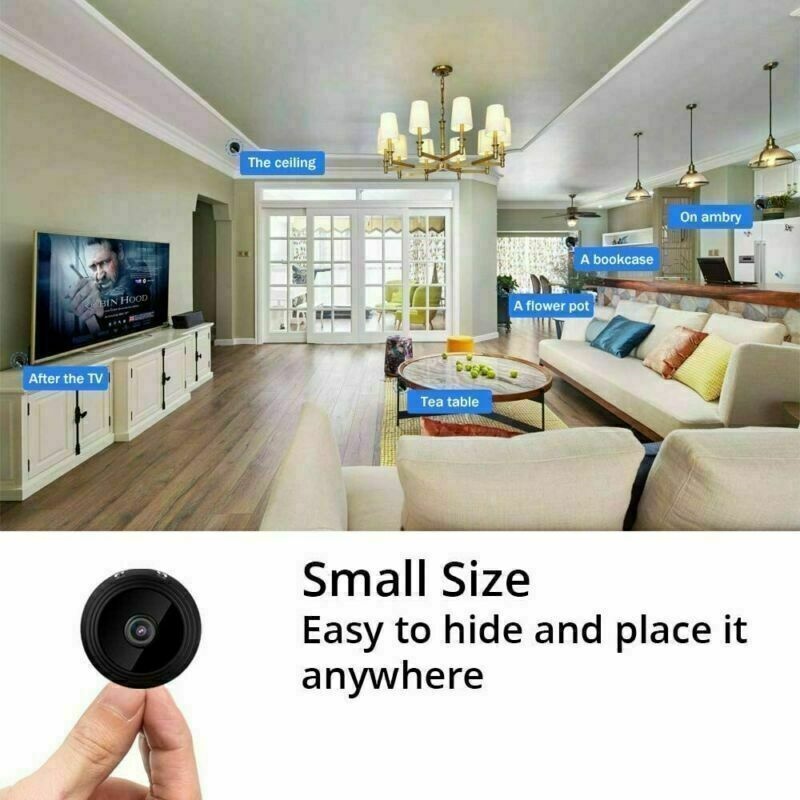
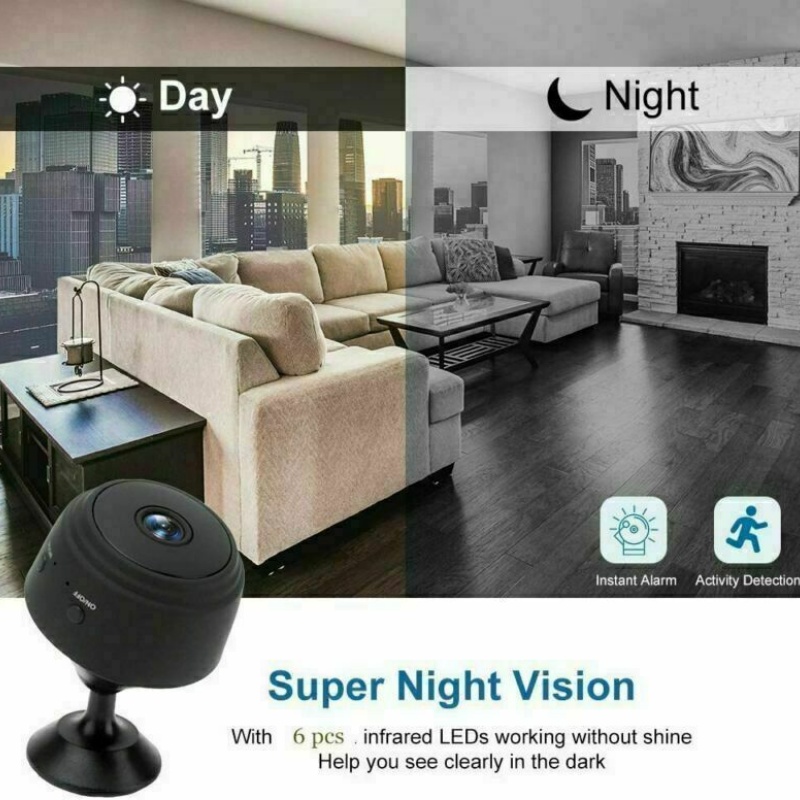
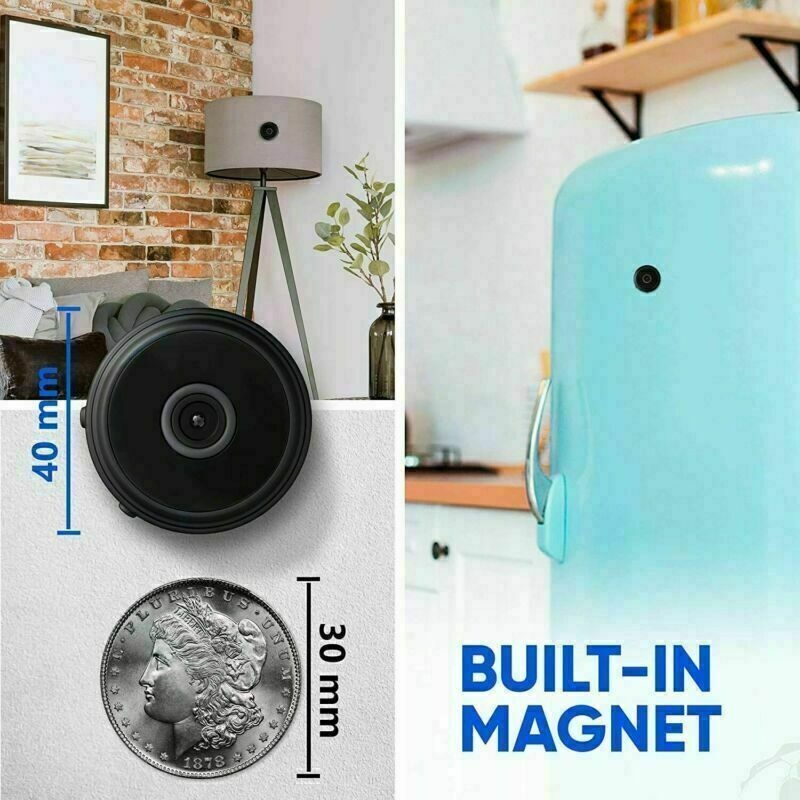
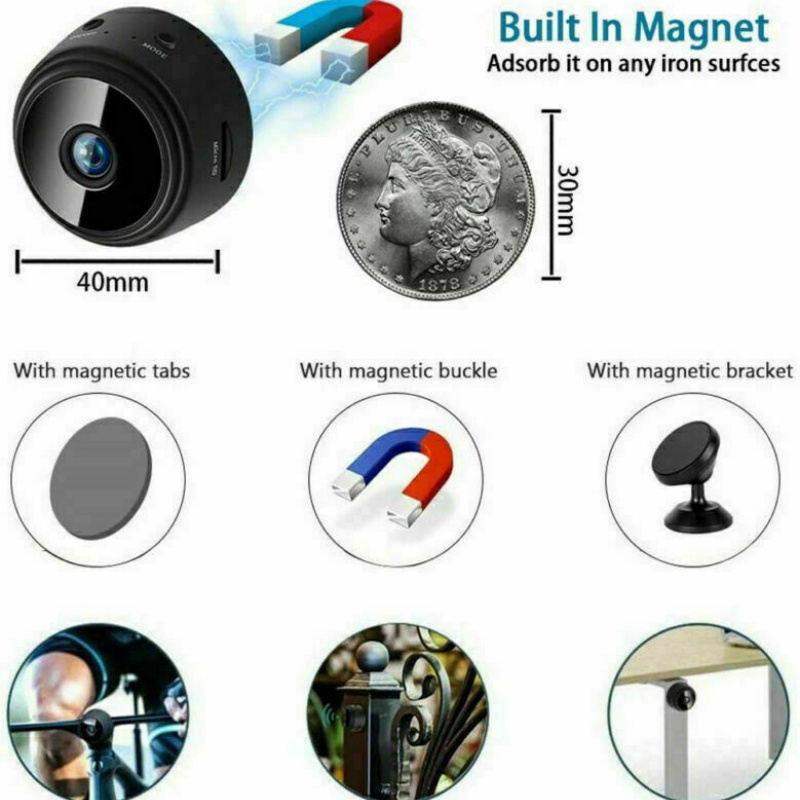
- 【Night Vision & Easy to install】 Built-in 6 hidden infrared lights for a clear display in low light condition(No-Glow in use), the light working distance reach to 5m which makes it perfect as a home security camera or a housekeeper/ nanny cam for recording both snapshot picture and videos without attracting any attention. With the internal magnet, Upgraded hidden camera can be adsorbed on any iron surfaces easily.
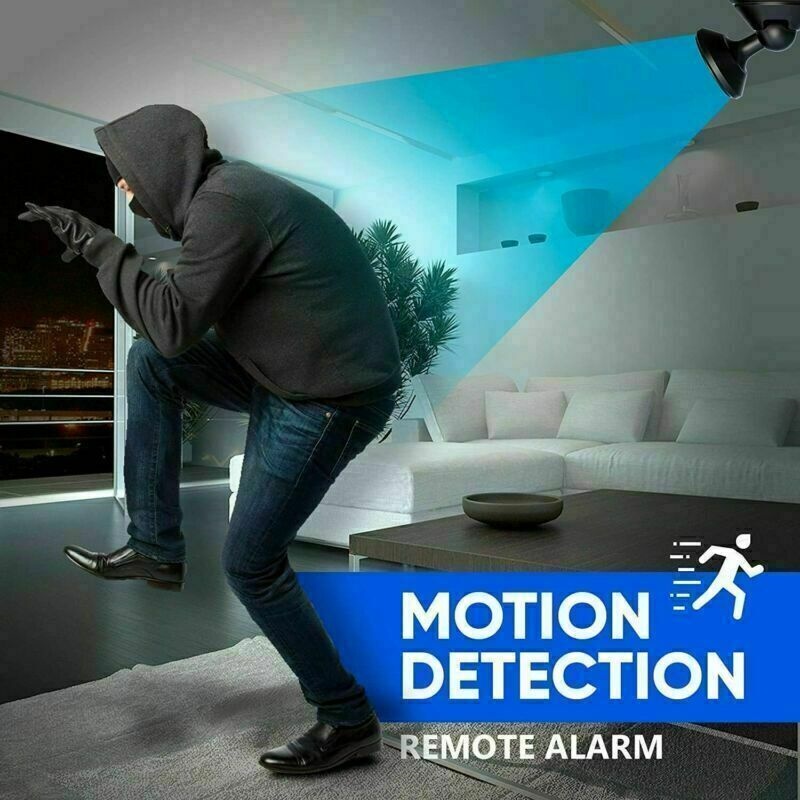
- 【Advanced Motion Detection Alerts】 T he wireless hidden camera will send push notification with images to your phone once motion is detected. You can log into the App to see what’s going on in real time and never worry about missing something important. This hidden spy cam automatically records and overwrites the oldest SD card files when full for continuous recording.
- 【Works as a Normal Camera without Wi-Fi】 One camera can support multiple users and one app can support multiple cameras simultaneously. This spy camera features hotspots so it can record without Wi-Fi too: just insert a SD card (not included) and turn on, the mini Wi-Fi camera will auto record HD video files to SD card; It can also record videos even if the network is offline
| A9 Camera installation Instruction | ||
| Thank you for your order | ||
|
Note: First, Phone switch to the flight mode ,then connect using "Hotspot for the first connection!!!
|
||
| 1. Account Registration: Scan the QR or Search the V380 Prp App in App Store or Google Play Store and | ||
| Download the App to your mobile phone | ||
| 2.Open the App and log in to your account, or Create an account with your phone number or email ID | ||
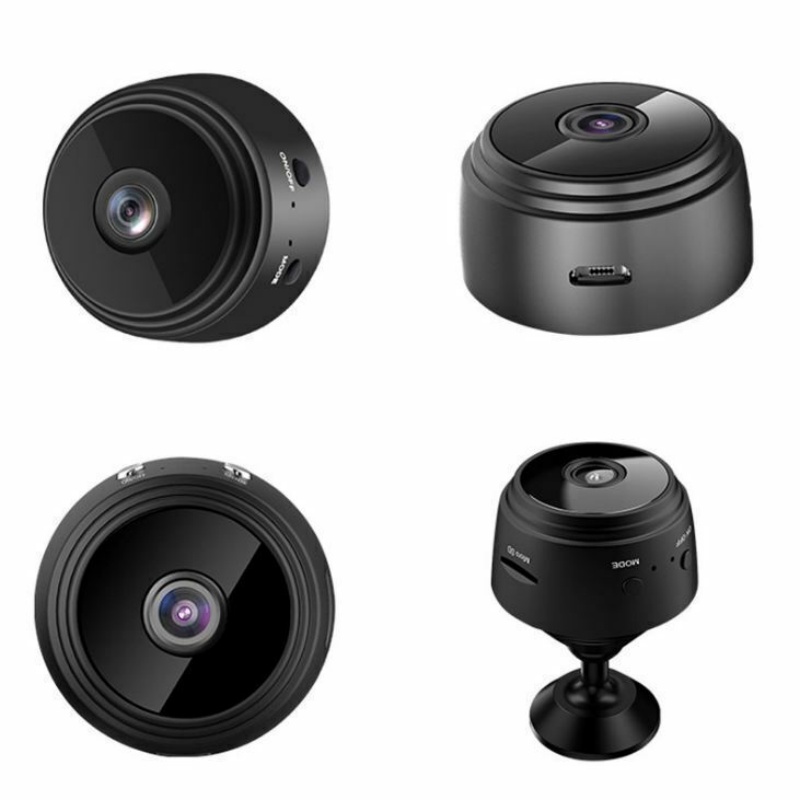
| 3. Power on the Camera with a UBS adapter : Press the On / Off button for 3 seconds to turn on(blue light on) . | ||
| Press " MODE" button for 5 seconds to reset(blue light blink slowly) . | ||
| 4. Add the Camera to the App: Tap the " +" button , and then select " Fast networking" (AP Mode) | ||
| 5. Add the WiFi details: enter your home Wi-Fi name and password (double check name & password all correct) , | ||
| then tap the " Next" button. | ||
|
||
| 7.. Finish the Setup: Once you see the message “Added successfully” on the mobile app, you can edit the name of the camera manually, tap the “Done” button to complete the setup. | ||
|
|
||
|
|
Specifications:
-
Function:
Support Wi-Fi, Video, Camera, Loop Recording, Motion
Detection, Infrared Night Vision, Time Display.
Resolution: 1080P/720P
Video Format: AVI
Picture Format: JPEG
Frame Number: 30fps
Visual Angle: 120 degree
Recording Range: 5 m
Compressed Format: H.264
Recording Time: Over 1 hour
Charging Time: 2.5 hours
Voltage input: DC 5V 1A
Interface: MICRO USB Interface
Package Includes:
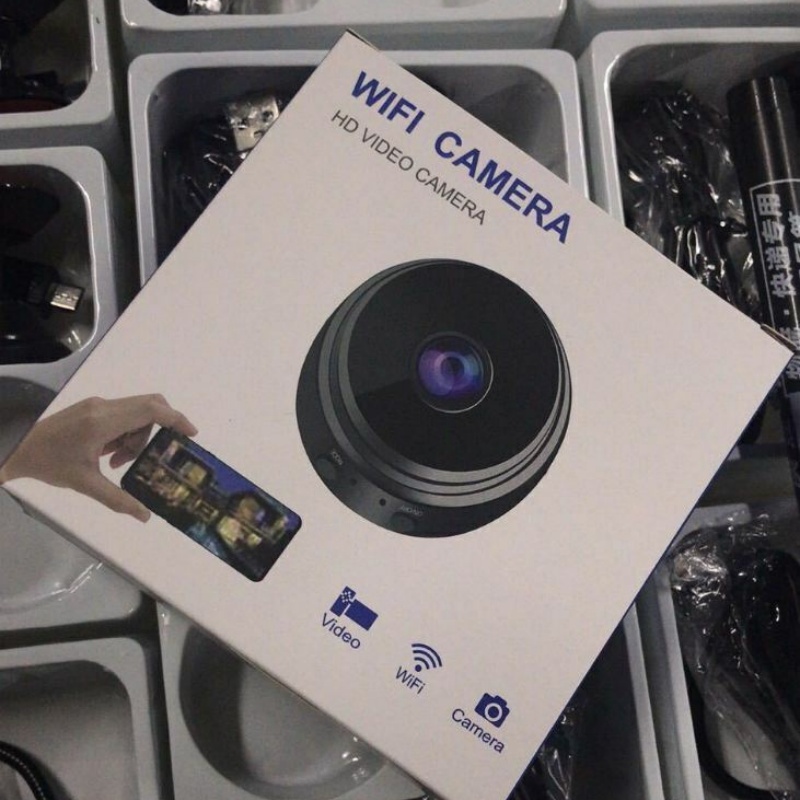
1x Mini Camera
1x Bracket
1x Mini USB Charging Cabl